




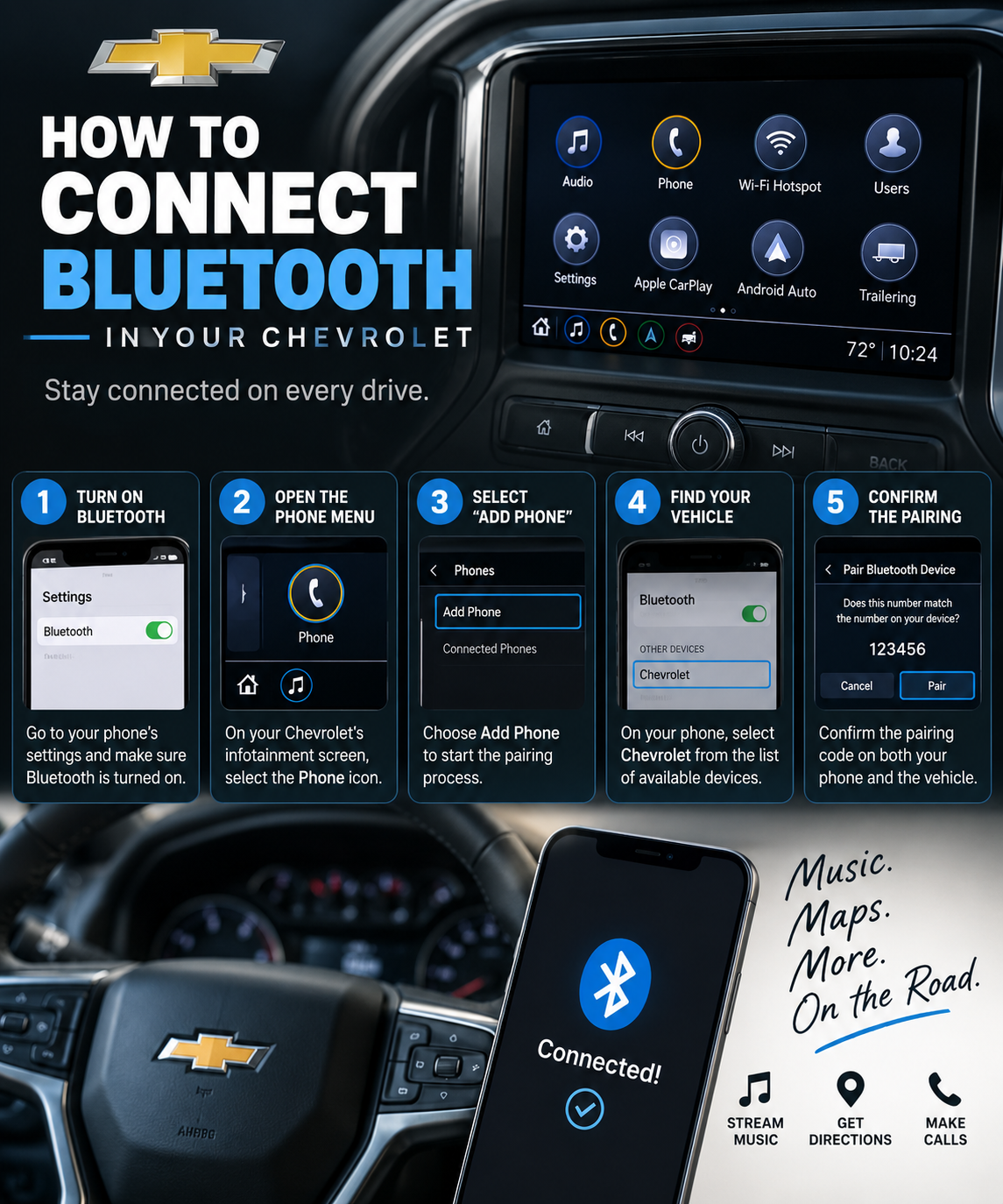
Getting your Bluetooth connected in your new Chevrolet should be quick and easy. However, many new Chevrolet owners run into a few common stumbling blocks during the pairing process. At Speck Chevrolet of Prosser, our team helps customers with Bluetooth connectivity questions every single day. Here is a complete step-by-step guide to connecting Bluetooth in your new Chevrolet.
Before You Start: A Few Quick Tips
Before attempting to pair your phone, keep these important tips in mind. Make sure your phone's Bluetooth is turned on before starting the pairing process. Make sure your phone is not already connected to another Bluetooth device nearby. Keep your phone close to your vehicle during the entire pairing process. Make sure your Chevrolet's infotainment system is fully booted up before attempting to connect.
Step-by-Step Bluetooth Connection Guide for Chevrolet Vehicles
Step 1: Turn On Your Vehicle and Infotainment System
Start your Chevrolet and allow the infotainment system to fully load before beginning. The Chevrolet infotainment system may take 30 to 60 seconds to fully boot up after starting. Do not attempt to pair your phone until the home screen is fully displayed on the touchscreen.
Step 2: Enable Bluetooth on Your Phone
Go to your phone's settings and make sure Bluetooth is turned on. On an iPhone, go to Settings and then Bluetooth and toggle it on. On an Android phone, go to Settings and then Connected Devices and toggle Bluetooth on. Make sure your phone is set to discoverable mode so your Chevrolet can find it.
Step 3: Access the Bluetooth Settings on Your Chevrolet's Infotainment System
On most Chevrolet models with Uconnect or Google built-in infotainment, tap the Phone icon on the home screen. Select Bluetooth Settings or Add New Device from the menu options. Your Chevrolet will begin searching for available Bluetooth devices in the area. Make sure your phone is nearby and discoverable during this step.
Step 4: Select Your Vehicle on Your Phone
Your phone should display your Chevrolet as an available Bluetooth device in the list. The vehicle name will typically appear as Chevrolet followed by your specific model name. Tap on your vehicle's name in your phone's Bluetooth device list to begin pairing. If your vehicle does not appear, try refreshing the Bluetooth device list on your phone.
Step 5: Confirm the Pairing Code
Your Chevrolet's infotainment screen and your phone will both display a pairing code. Make sure the code on your phone matches the code displayed on your Chevrolet's infotainment screen. Tap Pair or Accept on both your phone and your Chevrolet's touchscreen to confirm the connection. The pairing process should complete within a few seconds after you confirm the codes match.
Step 6: Set Up Phone and Audio Permissions
After pairing, your phone may ask you to grant permissions for phone calls and audio streaming. Select Allow or Yes on both your phone and the infotainment screen when prompted. Granting these permissions ensures you can make hands-free calls and stream music through your Chevrolet's speakers. Some phones may require you to manually enable these permissions in your phone's Bluetooth settings after pairing.
Step 7: Test Your Connection
Once paired, make a quick test call or play a song to confirm your Bluetooth connection is working properly. Your phone's audio should automatically route through your Chevrolet's speakers when connected. If the test call or music does not play through your speakers, check that your phone's media audio setting is enabled in the Bluetooth connection options.
Common Bluetooth Troubleshooting Tips
If you are still having trouble connecting your Bluetooth after following the steps above, try these common troubleshooting solutions:
Delete Old Pairings
If your phone has previously been paired to your Chevrolet or another vehicle, old pairings can interfere with new connections. Go to your phone's Bluetooth settings and delete any old or unused Bluetooth connections. Then restart the pairing process from Step 1 above.
Restart Your Phone
Sometimes a simple phone restart resolves Bluetooth connectivity issues that other troubleshooting steps cannot fix. Turn your phone completely off and back on before attempting to pair again. A fresh restart clears temporary software glitches that can prevent successful Bluetooth pairing.
Restart Your Chevrolet's Infotainment System
If your infotainment system is unresponsive or frozen, try restarting it before attempting to pair your phone. On most Chevrolet models, you can restart the infotainment system by holding the home button for 10 seconds. The system will reboot and return to the home screen after a brief loading period.
Check for Software Updates
An outdated infotainment system can cause Bluetooth connectivity issues in some Chevrolet models. Check your Chevrolet's infotainment system settings for available software updates. Software updates can often resolve Bluetooth pairing issues and improve overall system performance. Our service team at Speck Chevrolet of Prosser can help you check for and install available software updates during your next visit.
Try Wireless Apple CarPlay or Android Auto Instead
If Bluetooth pairing continues to be a challenge, try connecting via Wireless Apple CarPlay or Android Auto instead. Most 2024 and newer Chevrolet models support wireless smartphone integration without requiring a traditional Bluetooth pairing. Wireless CarPlay and Android Auto provide hands-free calling, navigation, and music streaming directly through your Chevrolet's touchscreen.
When to Contact Our Team at Speck Chevrolet of Prosser
If you have tried all of the steps above and are still unable to connect your Bluetooth, our team is here to help. Sometimes Bluetooth connectivity issues require a deeper diagnostic or software update that our certified technicians can perform. Do not hesitate to contact our team at Speck Chevrolet of Prosser if you need additional assistance with your Chevrolet's infotainment system. Here is how to reach us:
- Online: Visit our website and submit a service inquiry or schedule an appointment
- By Phone: Call our service department directly and speak with a team member
- Walk-In: Stop by during service hours and our team will be happy to assist you
Our team at Speck Chevrolet of Prosser is always here to help you get the most out of your new Chevrolet. We want every customer to feel completely comfortable and confident with every feature in their new vehicle. Do not hesitate to reach out with any questions about your new Chevrolet's technology features today.